Fix AirPrint Not Found
If AirPrint cannot detect your printer on an iPhone, iPad or Mac, these steps will help you reconnect your device.
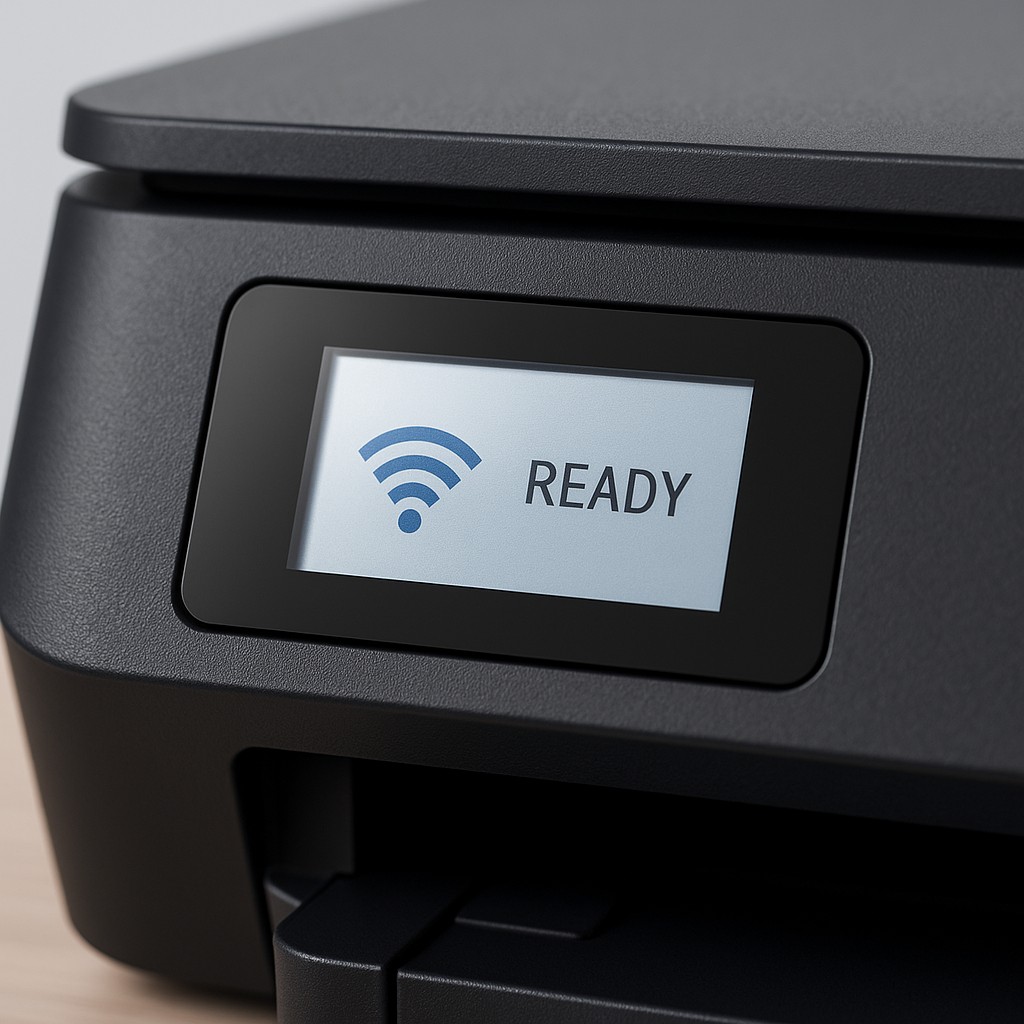
Step 1 – Verify network connection
- Ensure your printer is connected to the same Wi‑Fi network as your iOS or macOS device.
- Restart your printer and router to refresh network connections.
- Move the printer closer to the router if the signal is weak.
Step 2 – Enable AirPrint
- On the printer’s control panel, look for a setting to enable AirPrint or Mobile Printing.
- If available, ensure AirPrint is turned on. Some older models require a firmware update.
- Refer to your printer’s manual for the exact menu path.
Step 3 – Restart your Apple device
- Turn your iPhone, iPad or Mac off and then back on to refresh AirPrint services.
- After restart, open the document or photo you wish to print and tap the share icon.
- Select Print, then choose your printer from the list.
Step 4 – Update printer firmware
- Check for firmware updates that improve AirPrint compatibility.
- Download and install the update using the manufacturer’s instructions.
- AirPrint may not function correctly without the latest firmware.
If your printer still doesn’t show up in AirPrint, contact support for further assistance.