Fix Alignment Failed
When your printer reports that alignment has failed, follow these instructions to correctly realign the print heads.
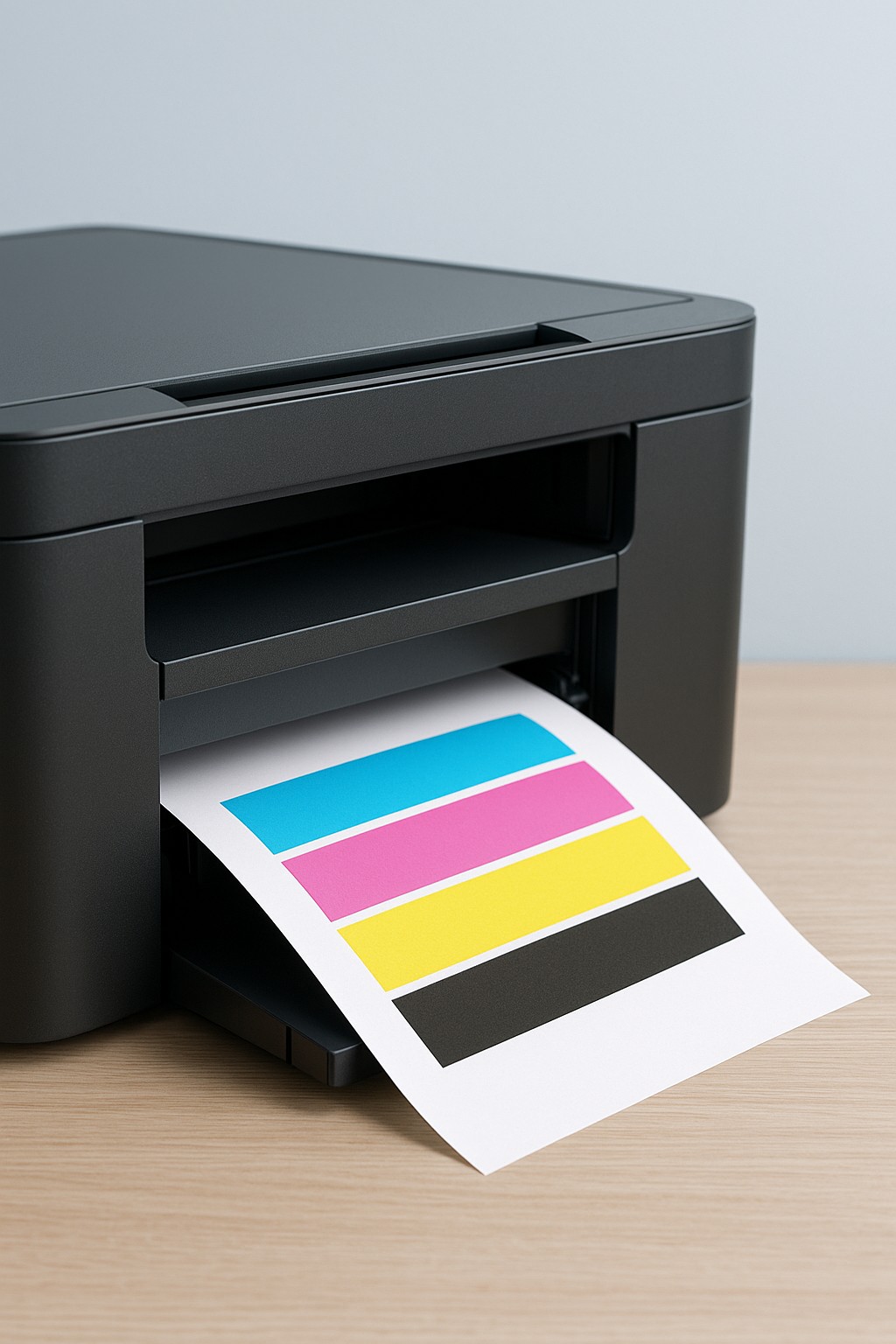
Step 1 – Reinsert the cartridges
- Open the access door and remove each ink or toner cartridge.
- Check for protective tape still attached to new cartridges and remove it.
- Firmly reinsert each cartridge until it clicks into place.
Step 2 – Run the alignment routine
- From the printer’s control panel, select the Alignment or Calibrate Print Heads function.
- Follow the on‑screen instructions; the printer will print an alignment page.
- Place the printed page face down on the scanner glass if prompted.
Step 3 – Use plain paper and check settings
- Use clean, white, letter‑sized paper for alignment; coloured or glossy paper may cause errors.
- Ensure your printer is set to the correct paper size and type in settings.
- Restart the printer and run the alignment again if the first attempt fails.
If the alignment continues to fail, there may be a mechanical issue with the print carriage or scanner. Contact support for further diagnosis.