Fix Duplex Printing Issues
If your printer isn’t printing on both sides of the paper as expected, follow these steps to diagnose and resolve duplex problems.
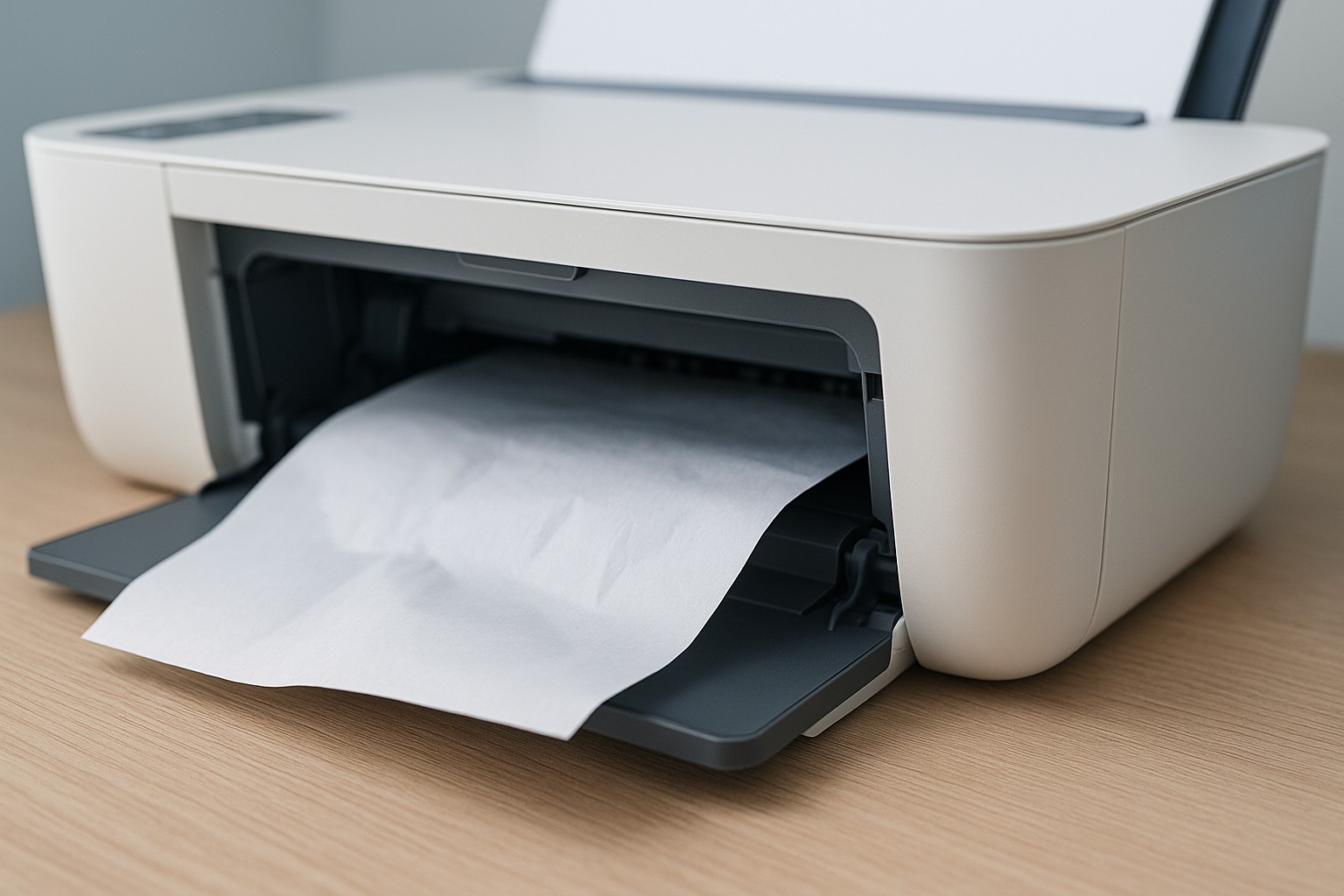
Step 1 – Enable duplex mode
- In the print dialog on your computer, check that the Two‑sided or Duplex option is enabled.
- On the printer’s control panel, verify that duplex printing is turned on in settings.
- If your model doesn’t support automatic duplexing, you may need to manually flip the paper.
Step 2 – Use supported paper
- Ensure you’re using paper that’s approved for duplex printing; thick or textured paper may not flip correctly.
- Fan the stack of paper before loading it to prevent sheets from sticking together.
- Do not overfill the paper tray, which can cause jams during duplexing.
Step 3 – Clean the rollers
- Power off the printer and unplug it.
- Open the access panels and locate the feed rollers.
- Use a lint‑free cloth slightly dampened with water to clean dust and debris off the rollers.
- Allow them to dry completely before printing again.
Step 4 – Update firmware and drivers
- Install the latest firmware and printer driver updates from the manufacturer’s website.
- New firmware often includes fixes for duplexing glitches.
- Restart the printer after updating and try duplex printing again.
If duplex printing still doesn’t work, your printer may require service. Contact support for assistance.