Fix Ink/Toner Not Detected
When your printer fails to detect newly installed cartridges, these steps can help you resolve the problem.
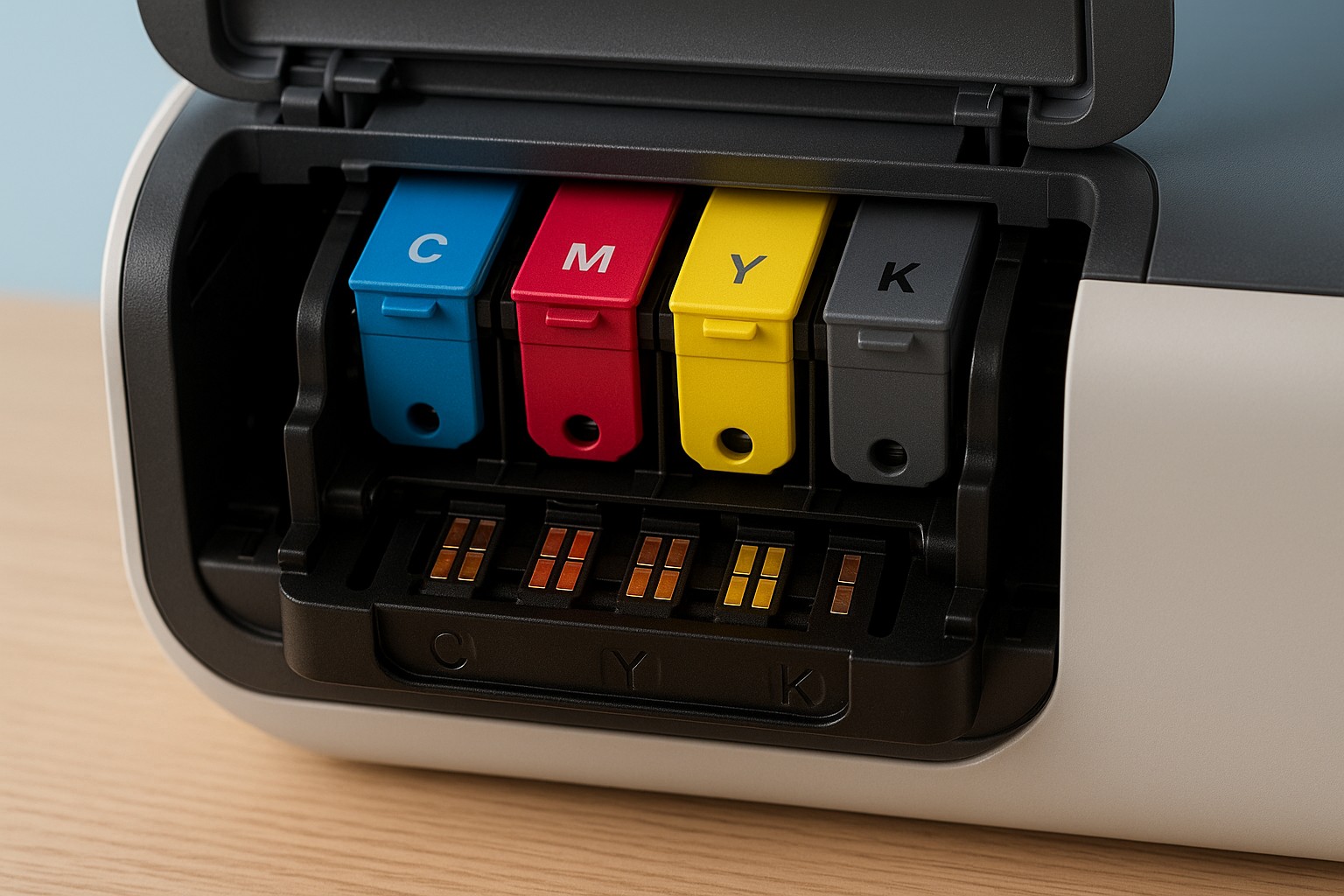
Step 1 – Reseat the cartridges
- Open the cartridge access door and wait for the carriage to stop moving.
- Remove each cartridge and then firmly reinsert it until you hear a click.
- Close the access door and check the display for errors.
Step 2 – Clean cartridge contacts
- Turn off the printer and unplug it from the outlet.
- Use a lint‑free cloth lightly dampened with distilled water to wipe the copper‑coloured contacts on the cartridge.
- Allow the contacts to dry completely before reinserting the cartridges.
Step 3 – Restart and update firmware
- Power the printer back on and check if the cartridges are now recognized.
- Download and install the latest firmware from the manufacturer’s support site.
- Some firmware updates address detection issues for new cartridges.
If the cartridges still aren’t detected, they may be defective or incompatible. Consider trying a new cartridge or contacting support for help.