Fix Printer Offline Issues
Seeing a “Printer Offline” message can be frustrating. Use this step‑by‑step guide to restore connectivity and get back to printing.
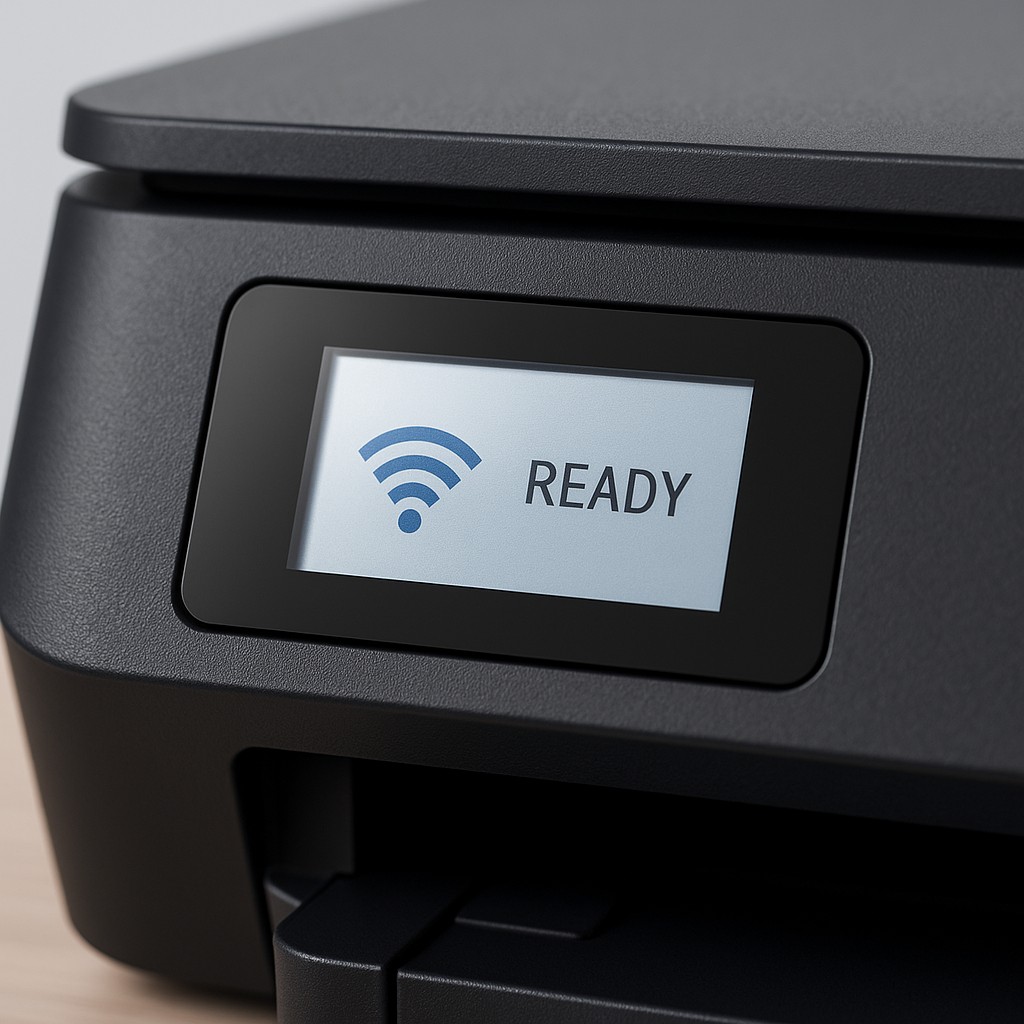
Step 1 – Verify connections
- Ensure the printer is powered on and connected to your Wi‑Fi network or via USB.
- Check that your router or access point is working properly; restart it if necessary.
- Try printing a network configuration page to confirm the printer’s IP address.
Step 2 – Restart your devices
- Power cycle the printer: turn it off, wait 30 seconds, then turn it back on.
- Restart your computer or mobile device. This clears any stalled print jobs.
- Restart the router to refresh network connections.
Step 3 – Remove and re-add the printer
- On Windows, open Devices and Printers, right‑click your printer and choose Remove device.
- On macOS, go to System Settings > Printers & Scanners, select your printer and click the minus (-) button to remove it.
- Re‑add the printer: click the add (+) button and let the system discover your device.
Step 4 – Reset the print spooler (Windows only)
- Press Win + R, type
services.mscand press Enter. - Scroll to Print Spooler, right‑click it and select Restart.
- This clears stuck print jobs that may cause offline status.
Step 5 – Update firmware and drivers
- Visit your printer manufacturer’s support site to download the latest firmware and drivers.
- Follow on‑screen instructions to install updates.
- After updating, restart the printer and your computer.
If you continue to see offline errors after trying these steps, please contact our support team for personalised assistance.