Update Printer Firmware
Firmware updates can improve performance, fix bugs and add new features. Follow these steps to update your printer safely.
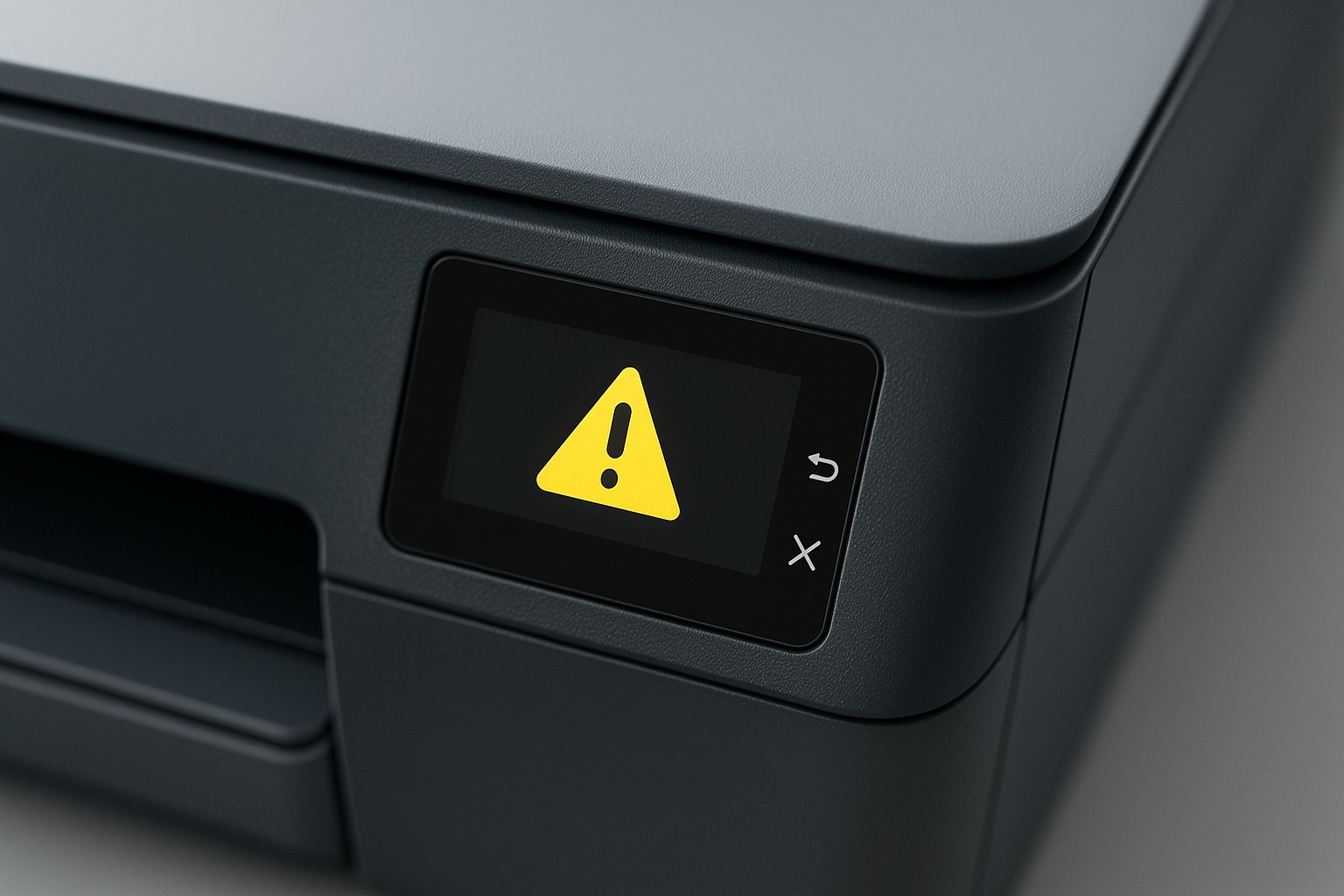
Step 1 – Identify your model and current firmware
- Check the printer’s control panel or printed configuration page to find the current firmware version.
- Note your printer’s exact model number (e.g., HP LaserJet Pro MFP M428fdw).
- You will need this information to download the correct update file.
Step 2 – Download the latest firmware
- Visit the manufacturer’s support website and navigate to the Drivers & Downloads section.
- Locate the firmware download for your model and operating system.
- Save the file to your computer; do not open it yet.
Step 3 – Prepare the printer
- Make sure the printer is plugged into a reliable power source.
- Disconnect any print jobs and ensure no other updates are in progress.
- On some models, you may need to enter a maintenance or update mode; consult the manual.
Step 4 – Install the firmware
- Run the downloaded firmware installer and follow the on‑screen prompts.
- The printer may restart several times; this is normal.
- Do not turn off the printer or disconnect the cable during the update process.
Step 5 – Verify the update
- After the update completes, print a configuration page or check the firmware version on the control panel.
- Confirm that the version matches the one you downloaded.
If you encounter errors during the update, stop and contact support. Installing the wrong firmware can damage the printer.